
cherrypdf
Mostly, what isn't here.
Productivity Tools · SaaS
- Status
- Completed
- Category
- Product
The project, at a glance
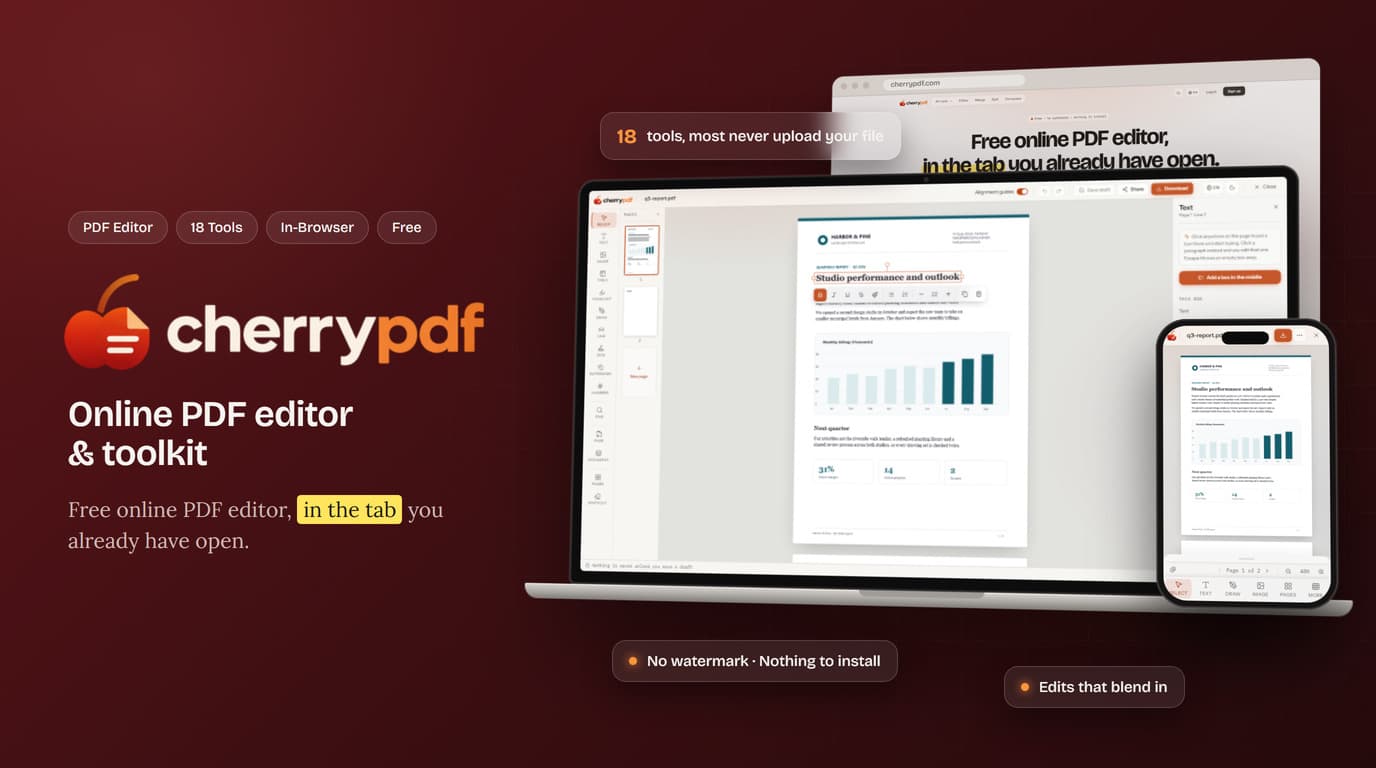
Almost everyone has to change a PDF at some point: fix a typo in a contract, drop two pages from a report, shrink a scan to fit an email limit, or get a form signed. The usual options are a desktop suite that costs money, or a web tool that adds a watermark, asks for a sign-up, and leaves the document looking different from the one you started with.
cherrypdf is a quicker, friendlier option. Open a PDF in the browser, click a line and retype it, drag a picture, sign it, and download. The document looks exactly as it did, apart from what you changed.
Next to the editor sit eighteen single-purpose tools: merge, split, compress, protect, OCR, eSign and more. Most of them never upload your file. Everything is free, with no watermark and nothing to install. A free account lets you download your results, and adds saved files, drafts you can pick up on another device, share links and signature requests.
cherrypdf
- Product
- cherrypdf
- Category
- Online PDF editor and PDF toolkit
- Platform
- Responsive web app for desktop, phone and tablet
- Audience
- Individuals, small businesses, privacy-conscious professionals and Bengali-language users
- Timeline
- About 6 weeks, late August to early October 2026
- Scope
- Product design, web app, accounts, e-signature and localisation
- Languages
- English, Portuguese, Indonesian and Hindi interface, with full support for Bengali documents
Try it yourself
What we set out to build
“Let anyone fix the PDF in front of them in a minute, for free, without installing anything or handing over files they'd rather keep private.”
We wanted the shortest path from "there's a mistake in this PDF" to "here's the fixed file, and it looks just like the original."
What people told us
- 1
"The editor wrecked my layout." After editing, the fonts look different, the spacing drifts and the logo comes out blurry.
- 2
"I don't want to upload this." Contracts, IDs and payslips are exactly the files people least want to send somewhere, just to merge two pages.
- 3
"Whiteout didn't really hide anything." The text under the white box can still be copied straight back out.
- 4
"My language comes out scrambled." Bengali text turns into jumbled letters or empty boxes.
- 5
"I just want one thing done." Merging, compressing or rotating shouldn't mean learning a whole suite or paying for a plan.
- 6
"Getting a signature takes days." Printing, signing, scanning and emailing a document back is still how many people do it.
How we got there
- Step 01
Start from the everyday jobs
We listed the things people most often need to do to a PDF — fix a line, remove a page, shrink it, sign it, send it for signature — and made each one reachable in a click or two from the home page.
- Step 02
Test with real documents
Contracts, invoices, reports, scans and Bengali documents were the benchmark at every step. A change only shipped once the downloaded file looked right.
- Step 03
Make the file look like yours
A corrected sentence should look like the sentences around it. Edits match the document's own style, and everything you didn't touch stays exactly as it was.
- Step 04
Keep private files private
Wherever a job can be done without uploading the file, it is, and each tool tells you upfront whether it does.
- Step 05
Be honest when something can't be done
If an edit can't be saved properly, the editor says so before you download, instead of quietly handing back a worse file.
Where cherrypdf sits
cherrypdf sits between heavyweight desktop PDF suites and upload-and-convert web tools:
- Edits that blend in. A fixed line looks like the rest of the page.
- More private than an upload-everything toolkit. Most tools never upload your file.
- Free where it matters. Editing and every tool are free, with no watermark. A free account is all it takes to download, and it adds storage, drafts, sharing and signature requests.
We didn't just build a PDF converter. We built an editor that respects the document you started with.
Built for four kinds of users
Everyday user
What they get
Fix, merge, split, compress or rotate a PDF in seconds, for free
Small business
What they get
Correct contracts and invoices so the changes blend in, and send them for signature
Privacy-conscious professional
What they get
Real redaction, password protection, and tools that don't upload the file
Bengali-language user
What they get
Bangla documents that read correctly when opened, edited, scanned and downloaded
How it came together
Eight phases, each shipping something the next one could build on.
- Step 01
Foundation
Core editor: click-to-retype text, drag-and-resize objects, one shared undo history, working the same on desktop and touch.
- Step 02
Rich Editing
New text boxes, bulleted, numbered, lettered and roman-numeral lists, editable tables, and link management.
- Step 03
Review & Approve
Signatures, freehand mark-up and notes, and whiteout that permanently removes redacted content.
- Step 04
The Toolkit
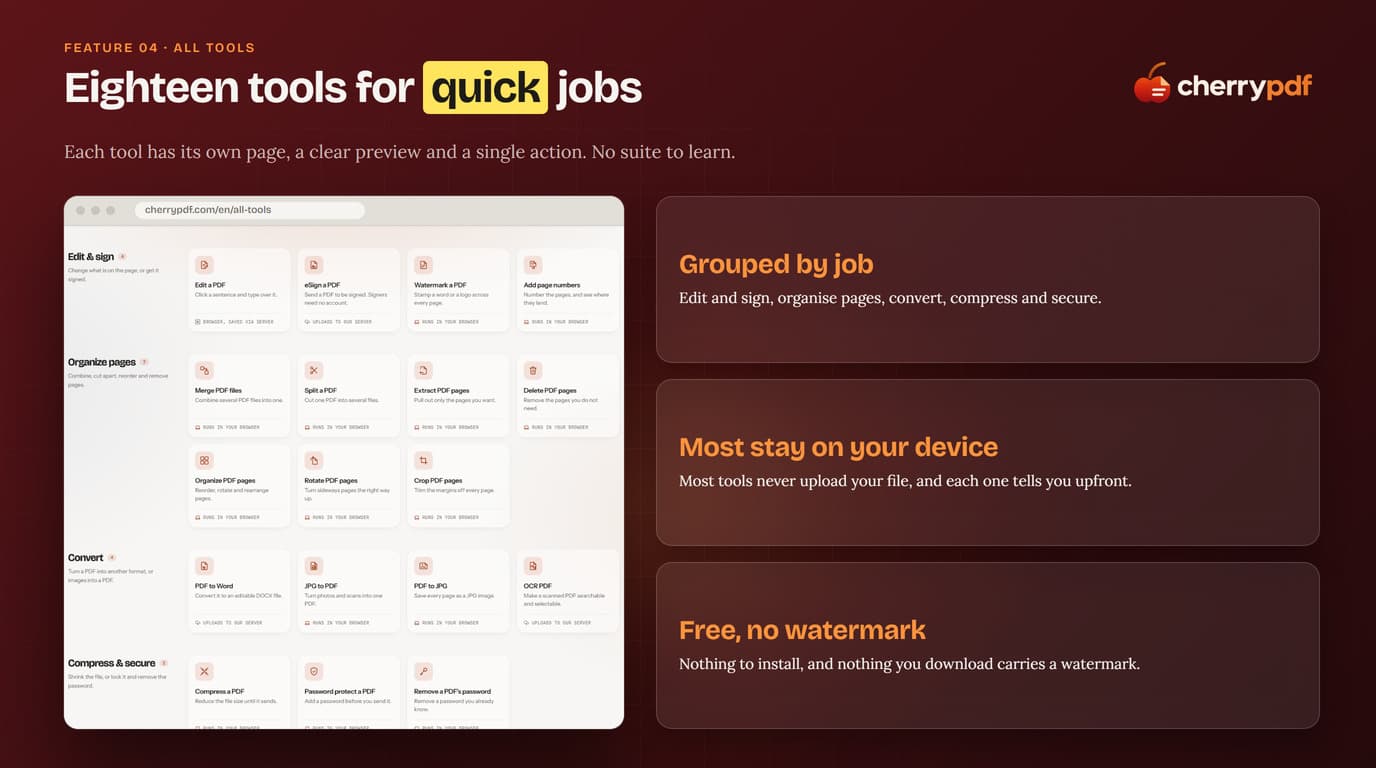
Eighteen single-purpose tools grouped as Edit & Sign, Organize Pages, Convert, and Compress & Secure.
- Step 05
Compression & Pagination
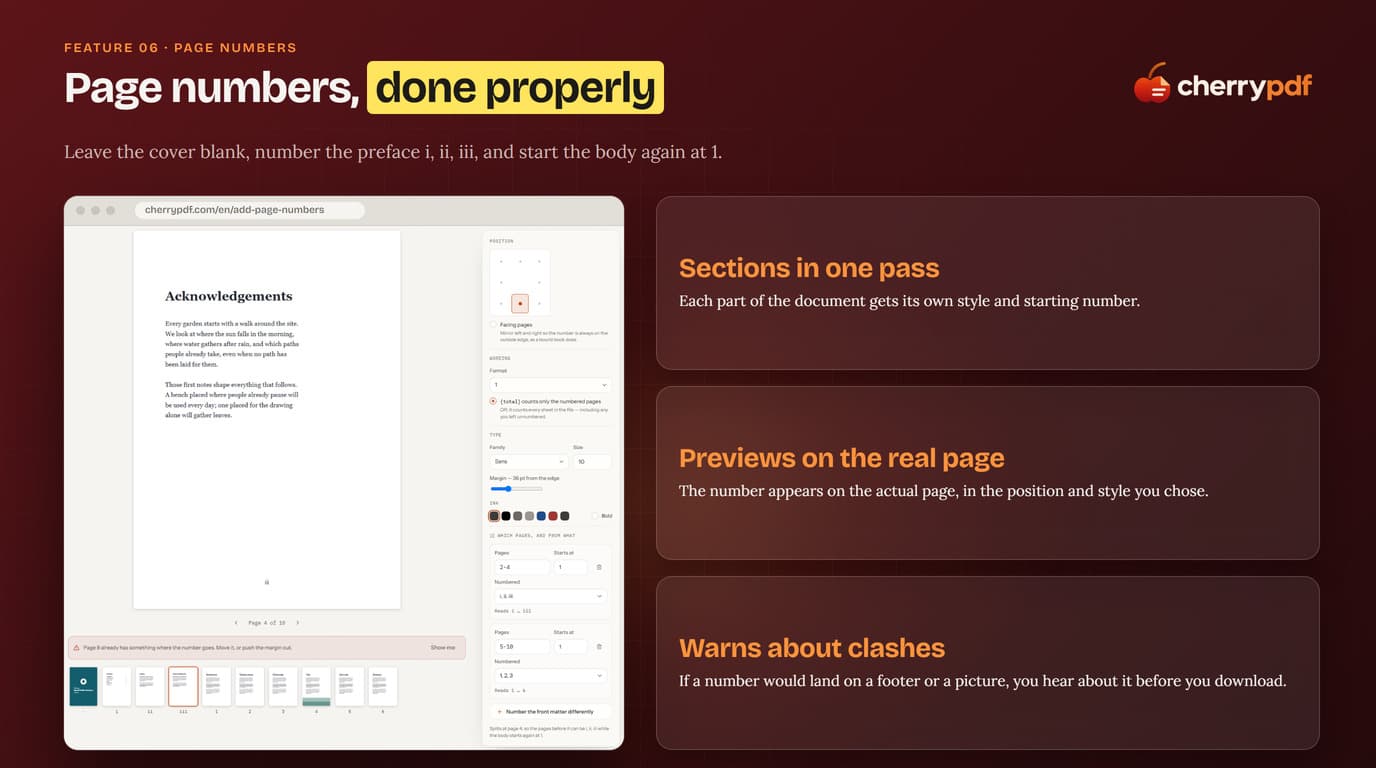
Content-aware compression with a before/after preview, and section-aware page numbering with clash warnings.
- Step 06
Conversion & OCR
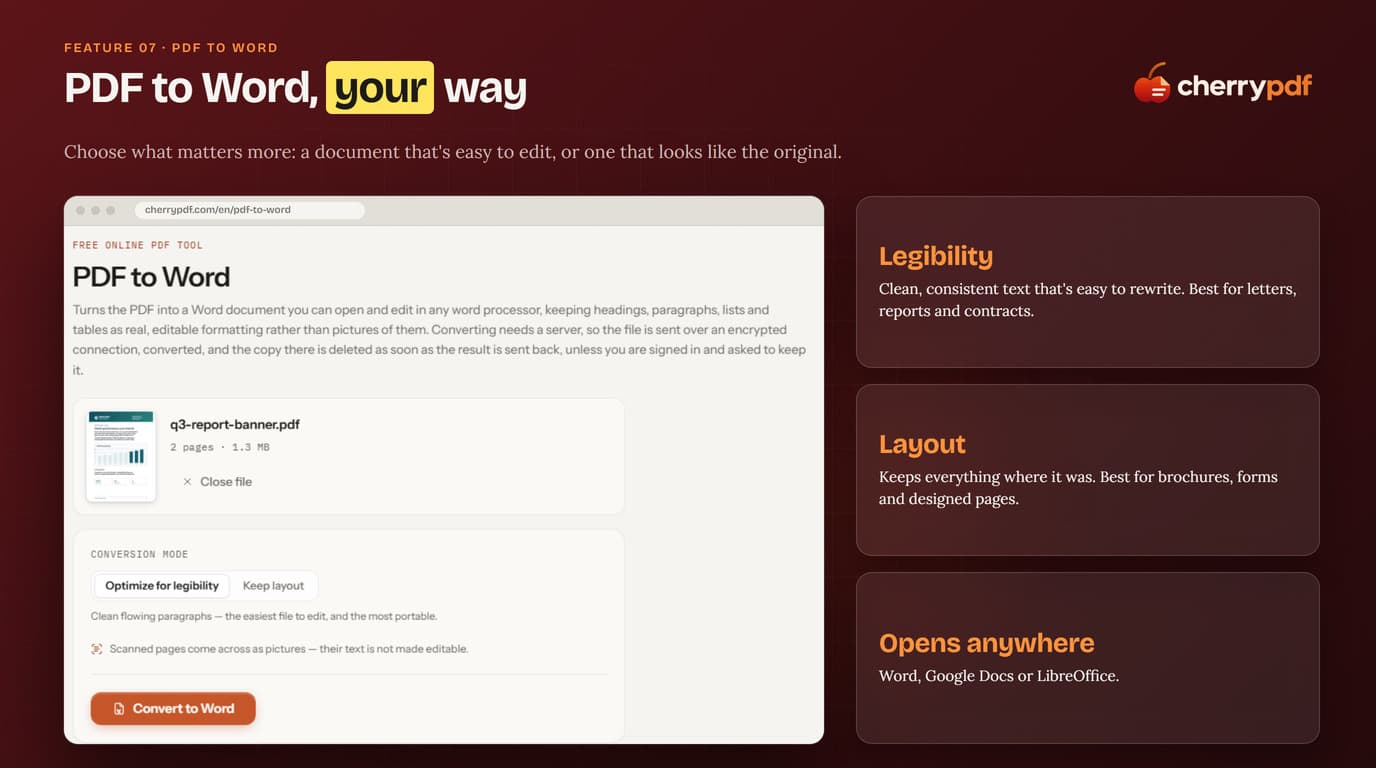
PDF-to-Word with a Legibility/Layout choice, and OCR with English/Bengali recognition.
- Step 07
Accounts & eSign
Saved files, drafts, expiring share links, and a guided multi-signer eSign flow with an audit certificate.
- Step 08
Localisation
Four interface languages and end-to-end Bengali document support.
Where it got hard
Challenge 01
"The editor wrecked my layout."
Resolution
Edits blend into the page. New words match the surrounding text, and everything you didn't change stays exactly as it was.
Challenge 02
"I don't want to upload this."
Resolution
Most of the eighteen tools never upload the file, and every tool says so clearly before you start.
Challenge 03
"Whiteout didn't really hide anything."
Resolution
Whiteout removes what's underneath it for good. Nothing is left to copy back out.
Challenge 04
"My language comes out scrambled."
Resolution
Bengali documents open, edit, OCR and download with every letter in the right place.
Challenge 05
"The file is too big to email."
Resolution
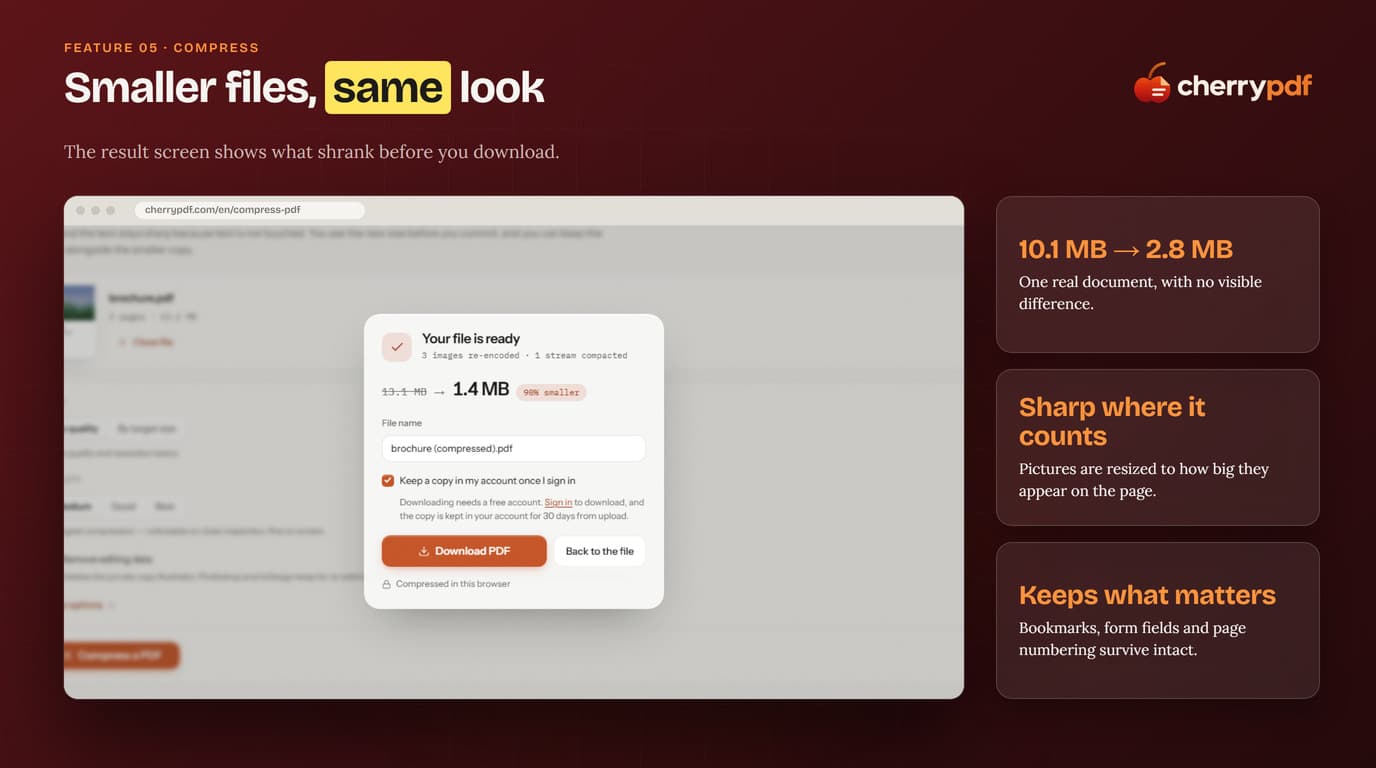
Compression shrinks files without visible loss and keeps bookmarks and forms. One real 10.1 MB document came down to 2.8 MB with no visible difference.
Challenge 06
"I can't search this scan."
Resolution
OCR makes scanned pages searchable and copyable, while the page looks exactly the same.
How the editor stays out of the way
- What you see is the page. The editor shows the document as it really looks, and the download matches it.
- One tool, one job. Each of the eighteen tools has its own page, a clear preview and a single action. No suite to learn.
- Previews that tell the truth. Watermark and page-number previews show the real page, and the page-number tool warns when a number would land on top of something.
- Honest about what can't be done. If an edit can't be saved properly, the download dialog says so before you press the button.
- Touch-ready. On phones and tablets: pinch to zoom, long-press for copy, paste and duplicate, select several items with a sweep, and long-press to reorder pages.
- Undo for everything. A whole drag or a burst of typing is a single undo step.
What the product does
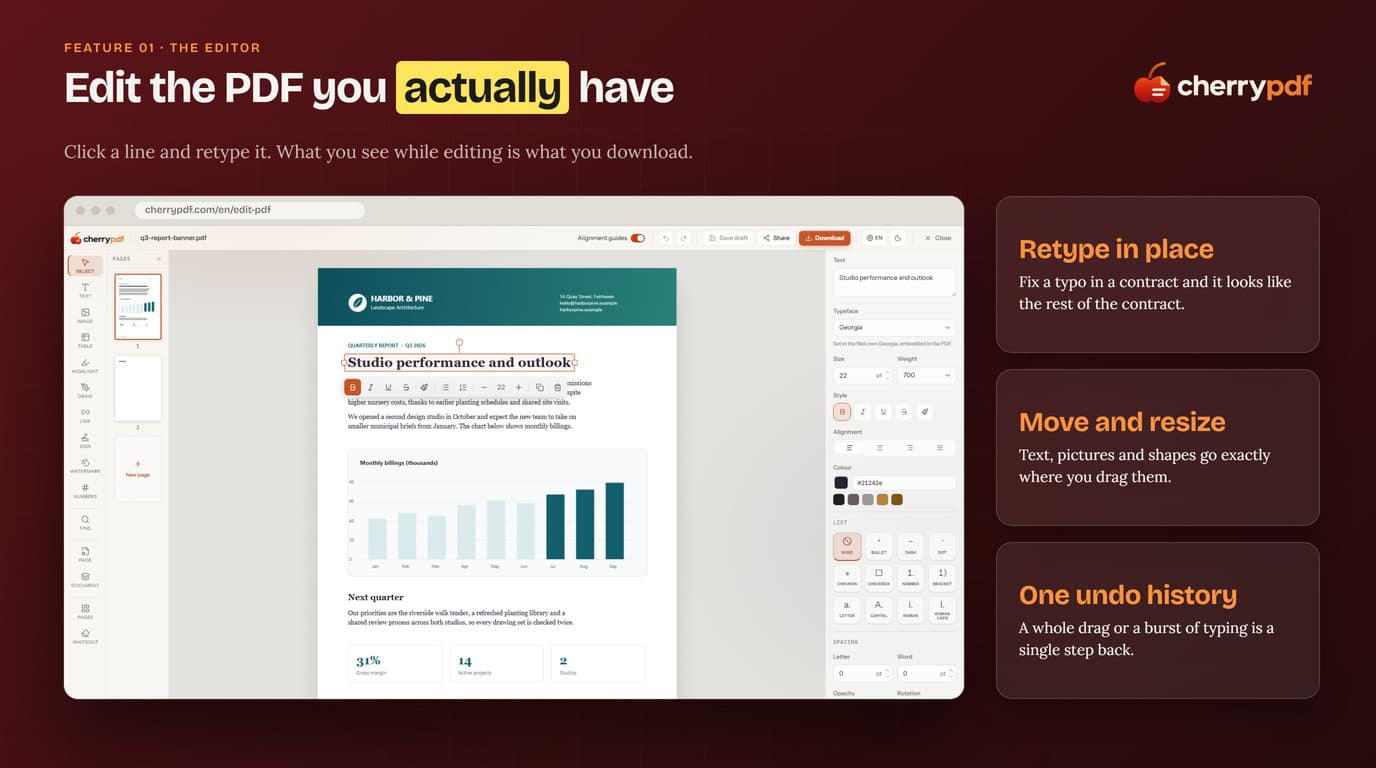
Edit the PDF You Actually Have
Click a line, retype it, and it still looks like your document.
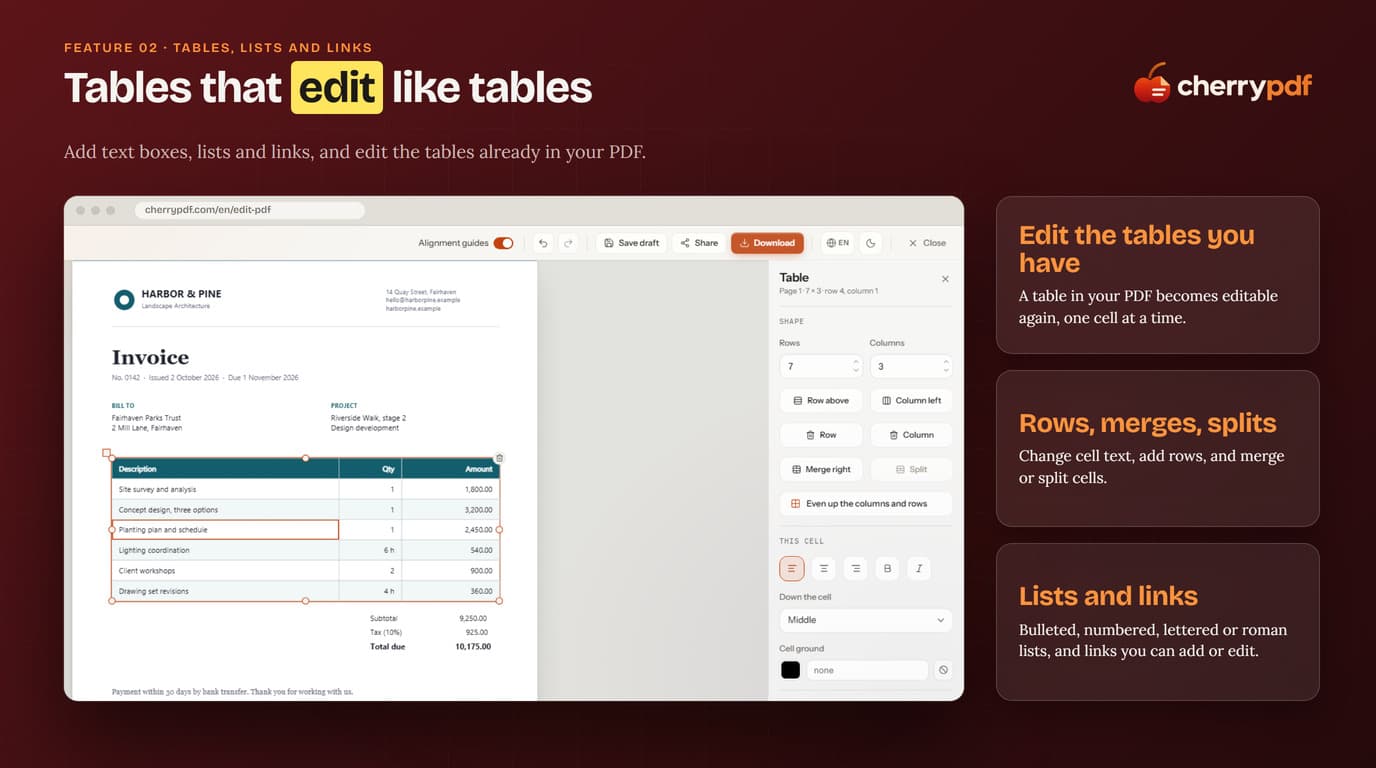
cherrypdf's editor treats a PDF like the living document it is, not a picture to annotate. Click any line and retype it — the correction matches the font, size and spacing of the text around it — then drag text blocks and pictures to a new spot, resize them, or fill in the document's own form fields. Editing goes beyond fixing what's already there: click anywhere to add a new text box, turn a block into a bulleted, numbered, lettered or roman-numeral list, and a table in the PDF becomes editable again — change cell text, add rows, merge or split cells — rather than staying a flat image.
- Retype in place.
- Fix a typo in a contract clause and it looks like the rest of the contract — one undo history covers a whole drag or a burst of typing as a single step back.
- Move, resize, and fill in forms.
- Text, pictures and shapes go exactly where you drag them, and the document's own form fields can be typed into directly.
- Tables, lists and links, not just text.
- A table in your PDF becomes editable again — add rows, merge or split cells — alongside bulleted, numbered and lettered lists, and links you can add or edit.
Sign, Mark Up and Redact
Everything a document review needs, in the same editor.
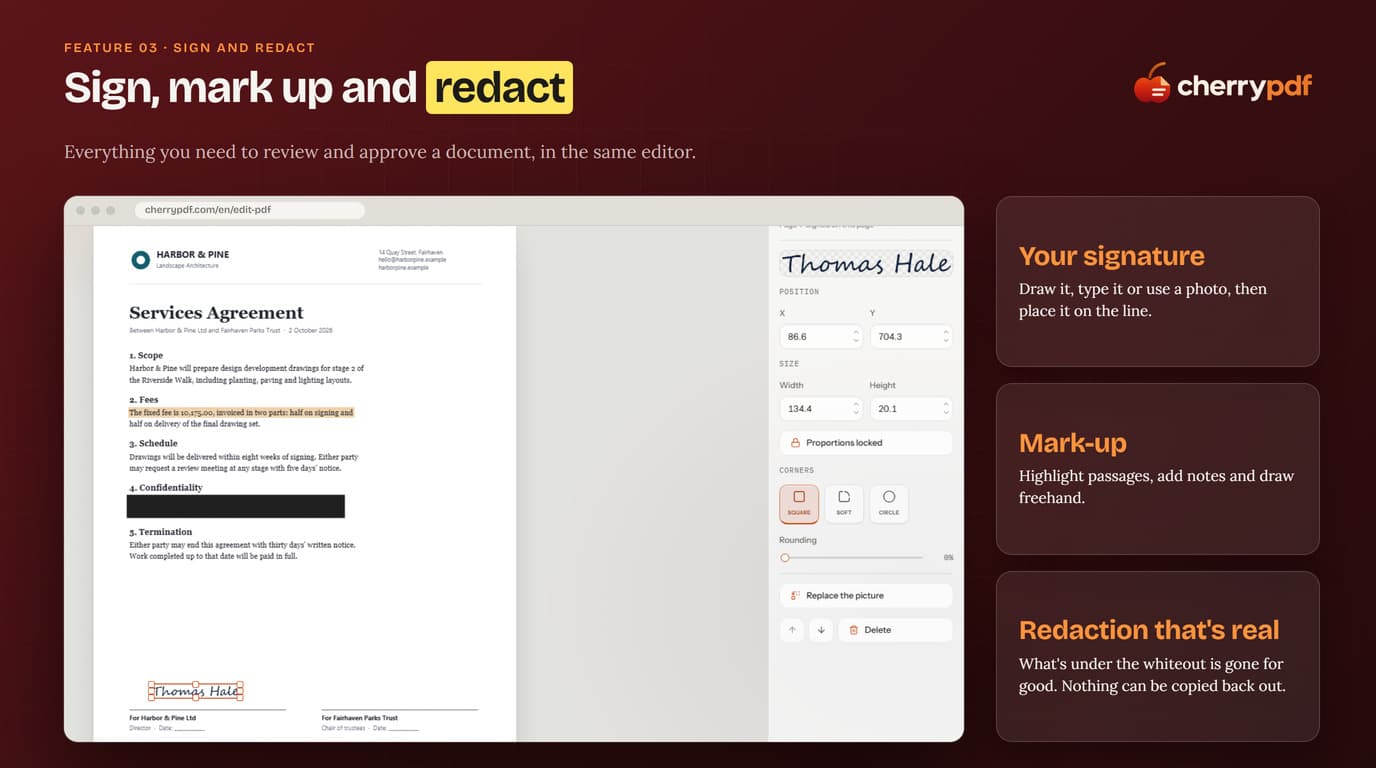
Reviewing and approving a document shouldn't mean leaving the editor for a separate signing tool. Draw, type, or upload a photo of a signature, then size and position it on the page; highlight passages, add notes and draw freehand for a review pass; and when something needs to disappear, whiteout removes what's underneath it for good — unlike tools that just draw a white box over text that can still be copied back out. For quicker jobs that don't need the full editor, eighteen single-purpose tools sit alongside it, each on its own page with a clear preview and one action, grouped as Edit & Sign, Organize Pages, Convert, and Compress & Secure.
- A signature that's actually yours.
- Draw it, type it, or use a photo, then size and place it on the page.
- Redaction that's real.
- What's under the whiteout is gone for good — nothing can be copied back out, unlike a white box drawn over live text.
- Eighteen tools, each doing one job.
- Grouped by task — Edit & Sign, Organize Pages, Convert, Compress & Secure — and most never upload the file, with each tool stating that upfront.
Compress and Number Pages
A smaller file that still looks like the original.
Compression usually means blurry pictures and missing bookmarks; cherrypdf resizes images to how big they actually appear on the page, so they stay sharp, while bookmarks, form fields and page numbering survive intact. The result screen shows exactly what shrank before you commit — one real document went from 10.1 MB to 2.8 MB with no visible difference. Page numbering gets the same care: real documents rarely number every page from 1, so cherrypdf splits a document into sections in one pass — an unnumbered cover, roman-numeral front matter, a body that restarts at 1 — and warns before a number would land on top of a footer or a graphic.
- Smaller, with no visible difference.
- One real 10.1 MB document came down to 2.8 MB — pictures are resized to how big they appear on the page, not blanket-compressed.
- Keeps what matters.
- Bookmarks, form fields and page numbering survive the compression pass intact.
- Page numbers that know the document's structure.
- Each section of a document gets its own numbering style and starting number, previewed on the real page, with a warning if a number would land on a footer or graphic.
Convert to Word & Search Scans
Turn a flat PDF into text you can edit or search.
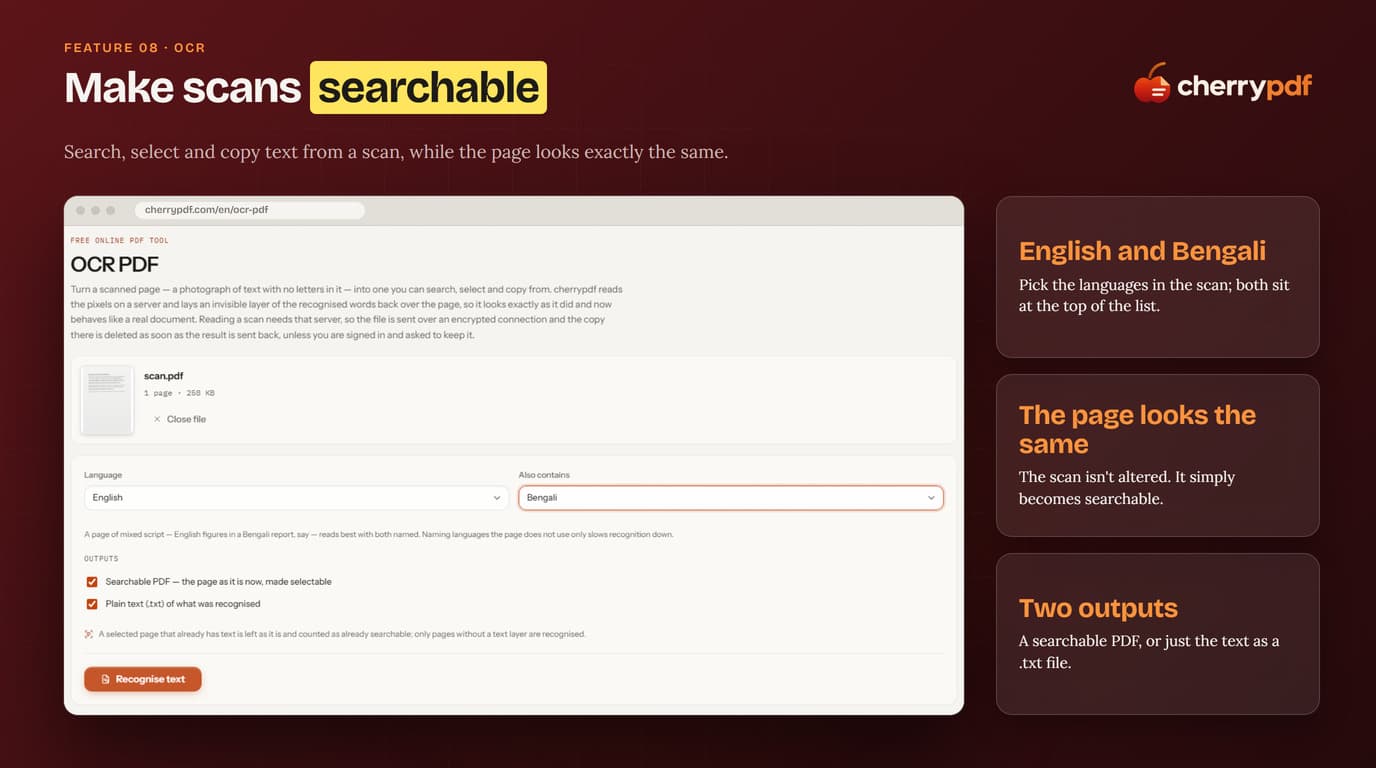
A PDF is sometimes the wrong format for the job — a contract that needs rewriting, a scan that needs searching. Converting to Word offers a real choice: Legibility produces clean, consistent text that's easy to rewrite, right for letters and reports; Layout keeps everything exactly where it was on the page, right for brochures and forms — the result opens in Word, Google Docs or LibreOffice either way. A scanned PDF is just a stack of pictures until OCR runs on it: pick the languages in the scan — with English and Bengali at the top of the list — and the page comes back exactly as it looked, just searchable, selectable and copyable, downloadable as a searchable PDF or as plain text.
- Legibility or layout, your call.
- Clean rewritable text for letters and contracts, or pixel-faithful layout for brochures and forms — the same source file, two different outputs.
- A scan becomes a real document.
- OCR adds an invisible, searchable text layer without altering how the page looks, with English and Bengali recognized by name.
- Two ways to get the text out.
- Download a searchable PDF, or just the recognized text as a plain .txt file.
Send, Save and Go Global
A signature request, a saved draft, and a product in four languages.
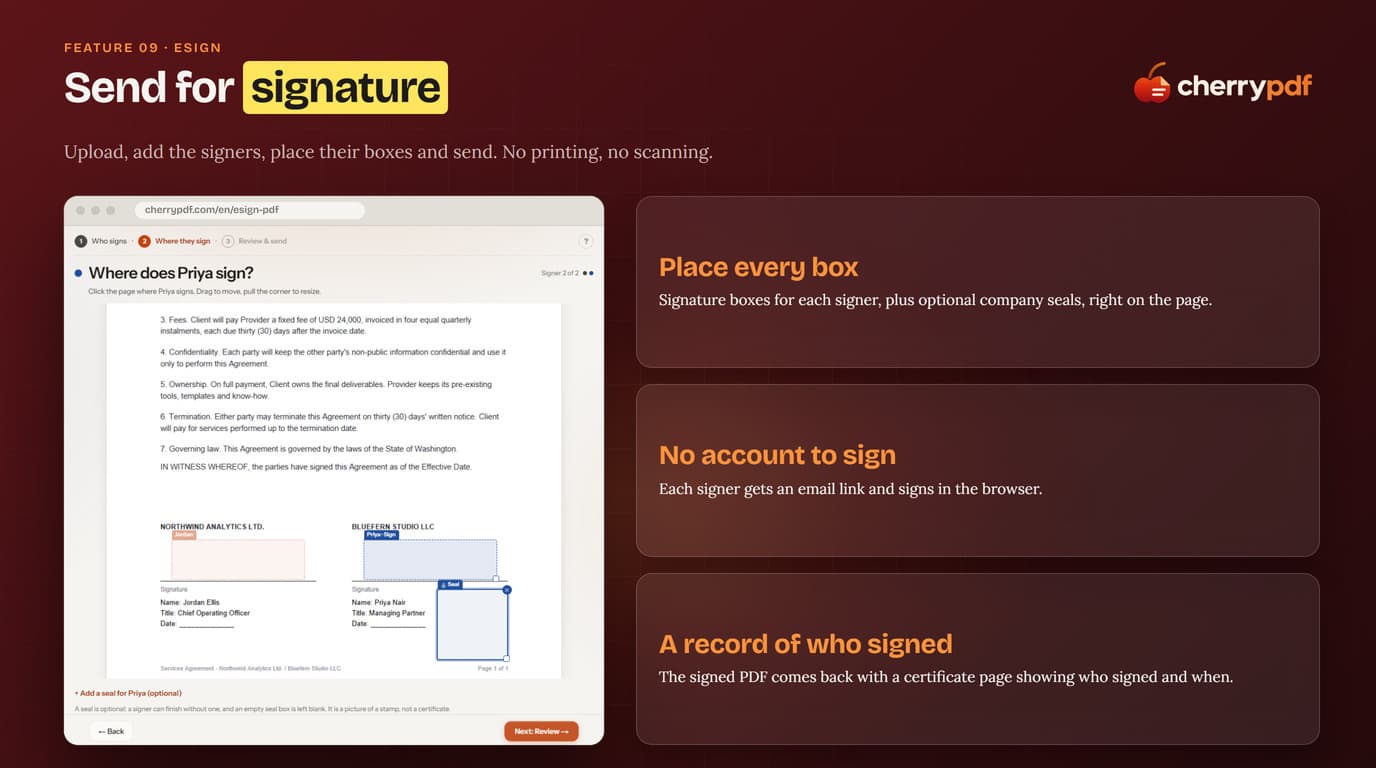
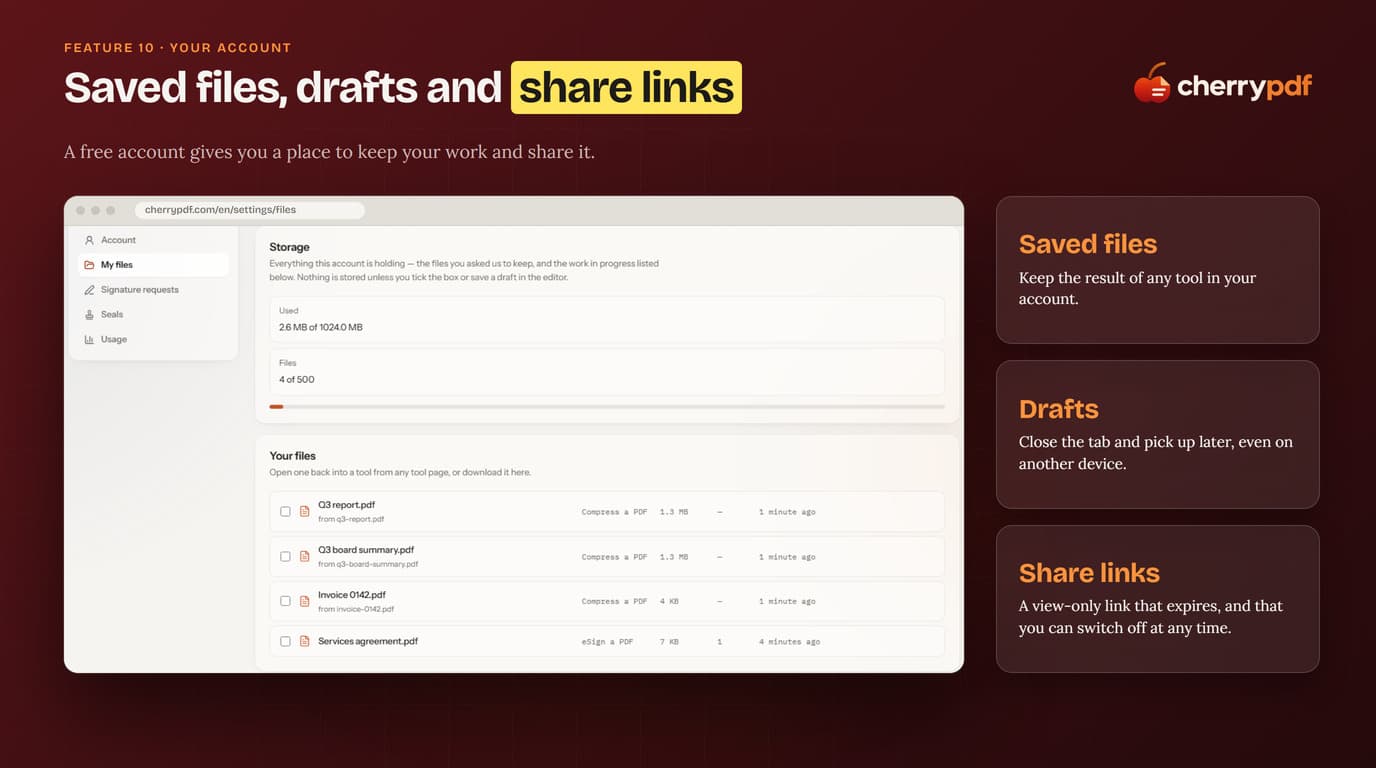
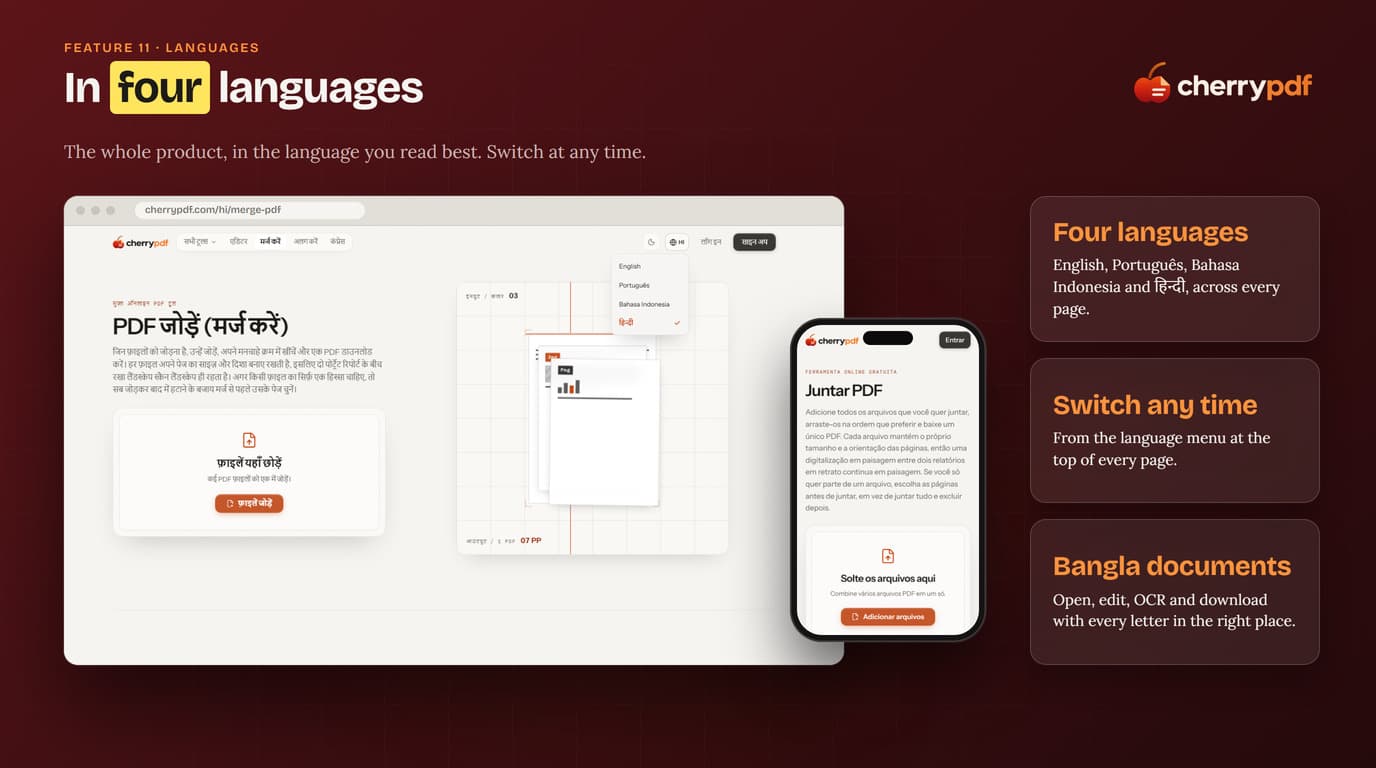
Getting a document signed shouldn't take printing, scanning and a week of emails. eSign turns it into a guided flow: upload the PDF, add who needs to sign, place a signature box for each of them directly on the page, then send — each signer gets an email link and signs in the browser with no account needed, and the finished file comes back with a certificate page recording who signed and when. A free account gives the whole product somewhere to live: save the result of any tool, pick up a draft on another device, and share a PDF with a view-only link that expires and can be switched off at any time. None of it is locked to English — the interface runs in English, Portuguese, Indonesian and Hindi, switchable from every page, while Bengali documents open, edit, OCR and download correctly regardless of which interface language is active.
- A signing flow with no account for the signer.
- Each signer gets an email link and signs in the browser — only the sender needs a cherrypdf account.
- A home for your work.
- Saved files, drafts you can resume on another device, and view-only share links you can switch off at any time.
- Built for more than English.
- Four interface languages, switchable from any page, with Bengali documents reading correctly end to end regardless of which interface language is active.
What's stored, and what isn't
Trust is the product here, so what happens to a file is disclosed rather than assumed:
- Most tools never see a server. Edit, merge, split, rotate, crop and compress all run on the file in your browser tab — the file doesn't leave your device for these.
- The few that do, say so. PDF to Word, OCR, eSign and the full editor's final render need a server; each tool page states this plainly before you start.
- Converted copies don't linger. A file sent for PDF-to-Word or OCR conversion travels over an encrypted connection, and the server-side copy is deleted as soon as the result is sent back, unless you're signed in and ask to keep it.
- An account has real limits, shown upfront. Saved files sit against a visible storage cap — up to 1 GB across up to 500 files — so nothing fills up silently.
- Share links expire, and you control them. A view-only link can be switched off at any time, rather than staying live indefinitely.
Before and with cherrypdf
Before cherrypdf
With cherrypdf
Why cherrypdf works
- Edits that blend in: a fixed line looks like it was always there.
- Private by default: most tools never upload anything.
- Zero friction to start: free, no watermark, nothing to install, and nothing to sign up for until you download.
- Honest: it tells you when something can't be done, instead of quietly handing back a worse file.
- Built for more than English: four interface languages and Bengali documents that read correctly.
- Ready to grow: accounts, sharing and e-signature from the start.
More from the portfolio
Need a focused tool instead of a giant one?
cherrypdf is the pattern — pick the one job a tool should do, and build the workflow around exactly that.